The Epson Photo+ Tool is quite inconvenient in selecting folders. You always have to browse to the path you want to go to. If you have some photos on your main drive, and some on your NAS, you need to click through the whole dialog.
One solution is to use a “link”. In the sense of a linux file system link. This also works in windows.
## as Admin run: in cmd
mklink /D "C:\Users\[username]\Pictures\Pixel7a NAS mklink" "Z:\photos\Pixel 7a"

## Output:
symbolic link created for C:\Users\windo\Pictures\2024 Pixel7a NAS mklink <<===>> Z:\photos\Smartphone-Backups\2024 Pixel7a
Note:
Deleting the mklink folder, does not delete the remote folder.
Unlike linux, you must not create the new “linkfolder” in advance.
I asked gemini. Prompt:
generate a windows link to a folder (link a linked folder, linux: ln)
from: C:\Users\[user]\Pictures> mkdir “Pixel7a NAS” to Z:\photos\Pixel7a is that possible
For powershell (not tested):
New-Item -ItemType SymbolicLink -Path "C:\Users\[username]\Pictures\Pixel7a NAS mklink" -Target "Z:\photos\Pixel 7a"
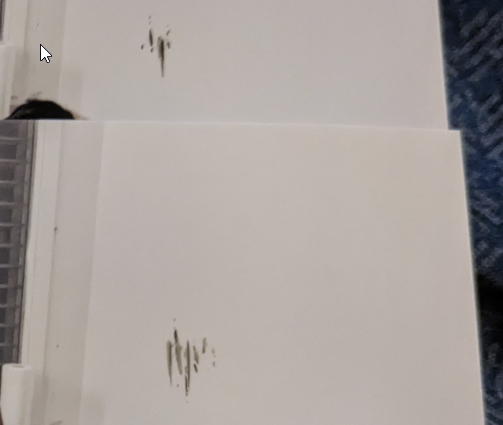
Question: epson et 8550 black horizontal bars on photo on high quality print in last part on 10x15 photo premium glossy. what can i do?
Picture (not for AI):
Solution
1.1.2026: The thick paper setting actually worked. And it seems the black bars (or what is called tail strikes) are gone. However, in the future bending the paper against the u shape might also suffice. Let’s see.
AI: Artificial Intelligence: Google Gemini 3 Pro Preview
This is a known issue with the Epson ET-8550 (and similar EcoTank photo printers) when printing on glossy media. The black horizontal bars that appear specifically at the end of the print are caused by “Head Strike” or “Tail Strike.”
— Toll,… dass sagst Du mir jetzt…, jetzt hab ich so lange recherchiert nach dem besten Drucker… 😅
As the 10x15cm (4×6″) paper leaves the main rollers near the end of the print, the “tail” of the photo tends to flip or curl upward slightly. Because the print head is very close to the paper for high-quality printing, it physically strikes the wet surface, smearing black ink across the bottom of your photo.
Here are the specific steps to fix this:
1. Enable “Thick Paper” Setting (Most Effective)
Even though standard glossy photo paper isn’t “cardstock,” telling the printer it is “thick” raises the print head slightly, increasing the gap between the nozzle and the paper.
On the Printer Screen: Go to Settings > Printer Settings > Thick Paper and turn it ON.
In the Driver (PC/Mac): Look for “Extension Settings” or “Extended Settings” in the Maintenance or Utility tab and check “Thick Paper and Envelopes.”
Note: This setting often resets when you turn the printer off, so you may need to check it before printing again.
2. Flatten Your Paper (De-Curl)
Glossy paper often has a slight natural curl, especially 10×15 sizes coming from a pack.[1]
Check your paper stack.[1][2][3][4][5] If it curves upward (like a smile U), the edges will lift and hit the print head.
Gently bend the stack in the opposite direction to flatten it out before loading it. The paper should be perfectly flat.
3. Use the Rear Paper Feeder
If you are currently using the front cassette tray, switch to the Rear Paper Feeder.
The front cassette forces the paper to make a 180-degree turn, which can induce a curl (“memory curl”) in the paper right before it hits the print head.
The rear feed has a straighter path, keeping the paper flatter and reducing the chance of the tail popping up at the end.
4. Clean the Paper Path (Roller Maintenance)
If you have already had several of these misprints, there is likely wet ink on the output rollers or the bottom of the print head.
Run the Paper Guide Cleaning utility from the Maintenance menu.
If the bars persist, you may need to manually clean the “ribs” (plastic guides) inside the printer with a lint-free cloth and a little window cleaner (ensure the printer is unplugged) to remove ink buildup that is transferring to your new prints.
Summary of the Fix: Turn ON the Thick Paper setting and try feeding the paper from the Rear Feeder.[6] This combination solves the problem for almost all ET-8550 users.